Lossless Scaling: How to Double Your FPS and Smoothness in Any Game
Modern gaming has a massive optimization problem. Whether you’re trying to push 4K resolution on a budget GPU or looking for a way to make handheld gaming on a Steam Deck more fluid, performance bottlenecks are a universal frustration. Traditional solutions usually involve expensive hardware upgrades or lowering settings until the game looks like a blurry mess. However, there is a better way. Lossless Scaling is a lightweight, sophisticated utility that brings high-end AI frame generation and spatial upscaling to virtually every game on your PC.
By using advanced algorithms like LSFG 2.3, this tool allows you to transform a choppy 30 FPS experience into a silky-smooth 60 or 90 FPS masterpiece without sacrificing image clarity. It’s the ultimate performance “cheat code” for Windows users.
Why Every Gamer Needs This Universal Scaling Tool
Most titles nowadays come with integrated solutions like Nvidia DLSS or AMD FSR. While these are powerful, they are frequently locked to specific hardware generations or require developers to manually implement them. In contrast, this software acts as a universal overlay. This means it doesn’t matter if you are playing a retro classic from twenty years ago or a brand-new AAA blockbuster; you can apply high-quality upscaling and frame generation instantly.
Additionally, this utility is hardware-agnostic. It runs equally well on Intel integrated graphics, aging GTX cards, and the latest Radeon hardware. It bridges the gap for users who want modern visual features without the modern price tag of a high-end GPU. Furthermore, it is particularly effective for laptop gamers who want to reduce heat and fan noise by lowering internal resolutions while maintaining a crisp output. Grab your copy and start playing with better visuals today.
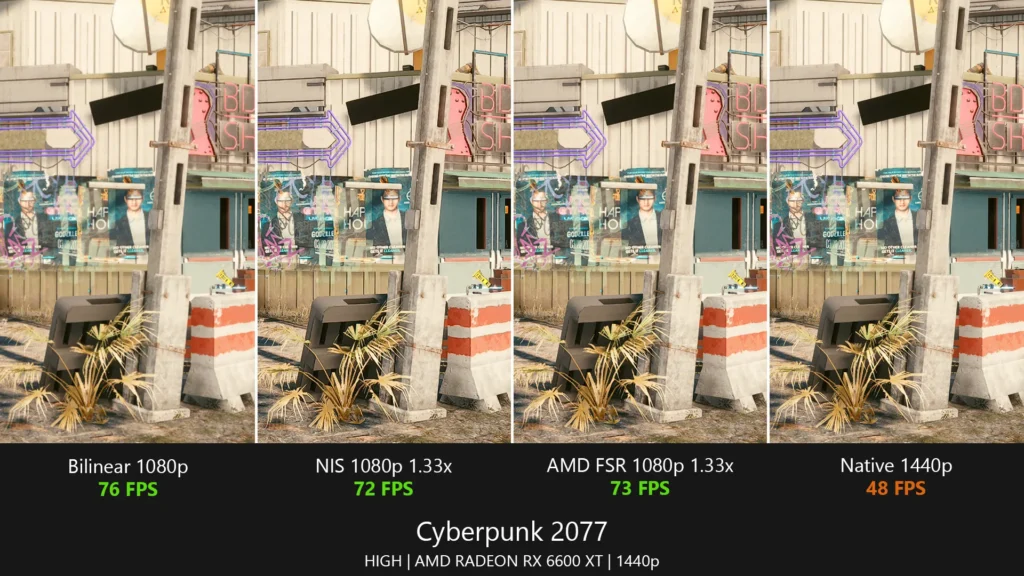
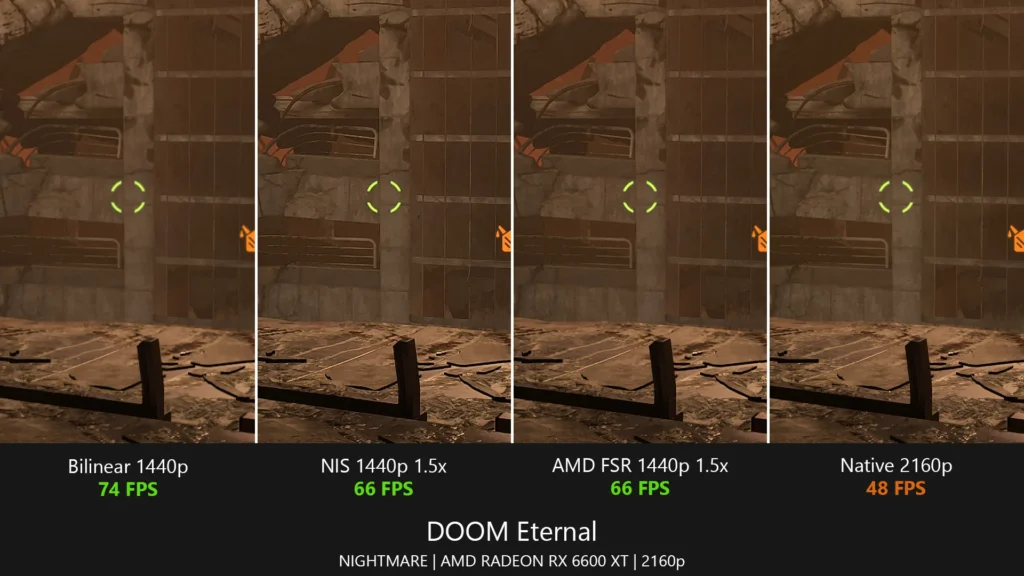
Pros & Cons: Is This Utility Right for Your Setup?
Before you install the client, it is helpful to understand the trade-offs involved in using an external scaling solution. Here is a breakdown of what to expect from the current build.
Universal Compatibility: Works with any title, including emulators.
Windowed Mode Requirement: Does not support exclusive fullscreen.
LSFG 2.3 Frame Gen: Massive boost in visual fluidity.
Minor UI Artifacts: Some HUD elements may flicker slightly.
Hardware Agnostic: Supports Nvidia, AMD, and Intel chips.
Slight Input Latency: Noticeable if base FPS is below 30.
Battery Saver: Great for Steam Deck and ROG Ally users.
VRAM Overhead: Uses a small portion of video memory.
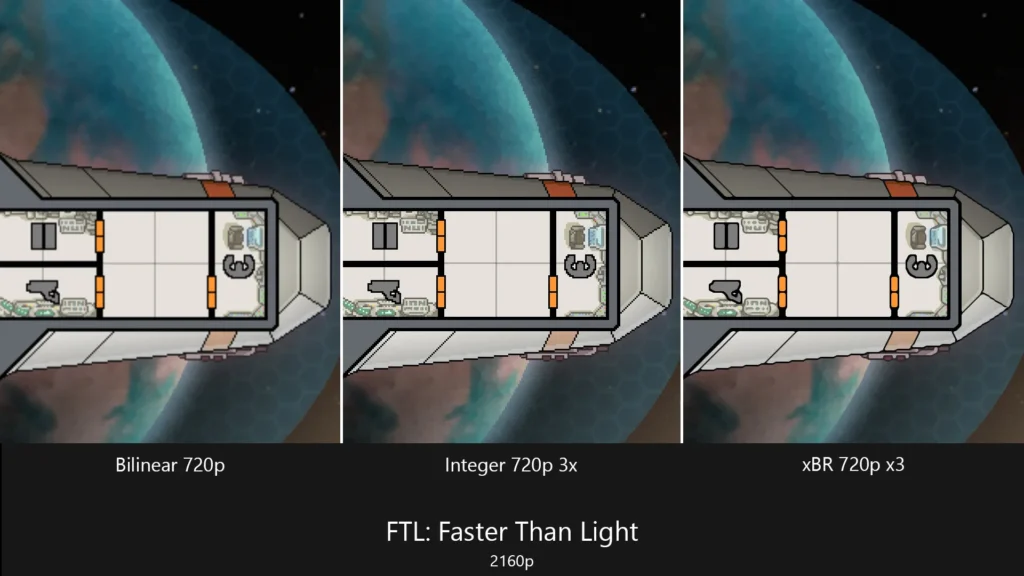
Custom Scaling: Includes LS1, FSR, NIS, and Bicubic options.
Setup Learning Curve: Requires specific V-Sync configuration.
Frequent Updates: Rapidly evolving AI models for better quality.
Overlay Conflicts: May clash with some recording software.
How to Set Up Lossless Scaling in 5 Easy Steps
Setting up this application is straightforward, but achieving a “zero-lag” feel requires a few specific tweaks. Instead of guessing the settings, follow this guide to get started.
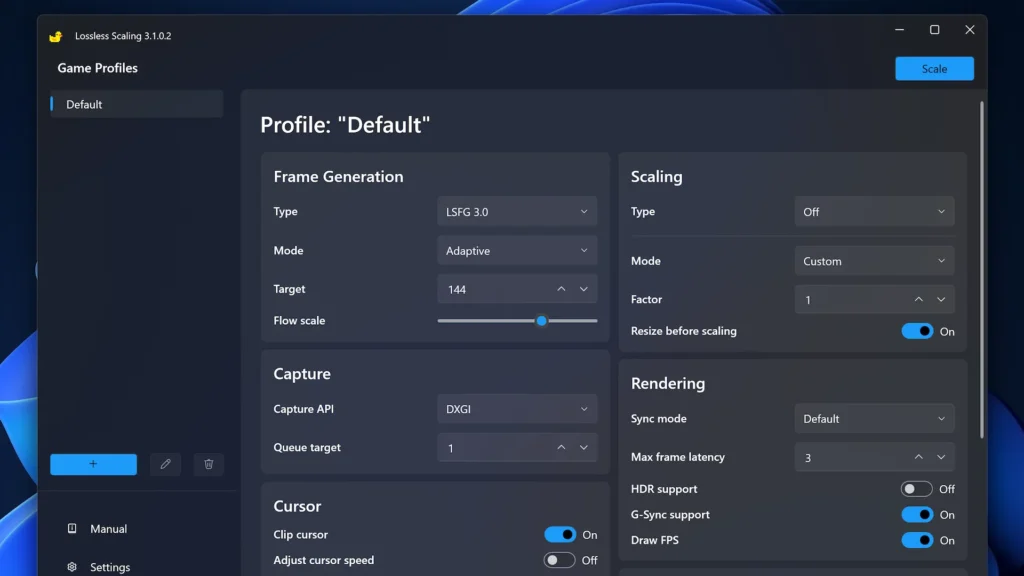
- Launch the Software: Open the utility before starting your game. Ensure you have the latest version installed to access the LSFG 2.3 features.
- Toggle Windowed Mode: In your game’s display settings, switch from “Fullscreen” to “Windowed” or “Borderless Windowed.” The tool operates as an overlay and cannot “see” an exclusive fullscreen window.
- Adjust Internal Resolution: Lower your in-game resolution. For example, if you have a 1080p monitor, set the game to 720p. This gives the GPU breathing room and provides the source pixels for the upscaler to work with.
- Configure the Scaling Type: Choose your preferred algorithm. We recommend LS1 for high-fidelity sharpness or AMD FSR for a more natural look. Enable LSFG 2.1 (or 2.3 if available) for the frame generation magic.
- Activate Scaling: Click the “Scale” button in the app window and immediately click back into your game. You will see a 5-second countdown before the scaling takes effect.
Mastering LSFG: The Frame Generation Revolution
The crown jewel of this software is LSFG (Lossless Scaling Frame Generation). Specifically, the latest iterations have introduced X2 and X3 modes. While traditional upscaling only improves the resolution of each frame, LSFG uses optical flow and AI interpolation to insert entirely new frames between the ones your GPU actually renders. Consequently, the game appears much smoother to the eye.
However, for the best experience, timing is everything. For instance, if you are using a 60Hz monitor, you should ideally cap your in-game frame rate to 30 FPS using a tool like RTSS (RivaTuner). Then, let the LSFG X2 mode generate the remaining 30 frames to reach a perfectly paced 60 FPS. This ensures consistent frame delivery and minimizes stuttering. Moreover, users on handheld PCs like the Legion Go find this indispensable. By rendering at a lower TDP to save battery, they can maintain high visual quality and high frame rates simultaneously.
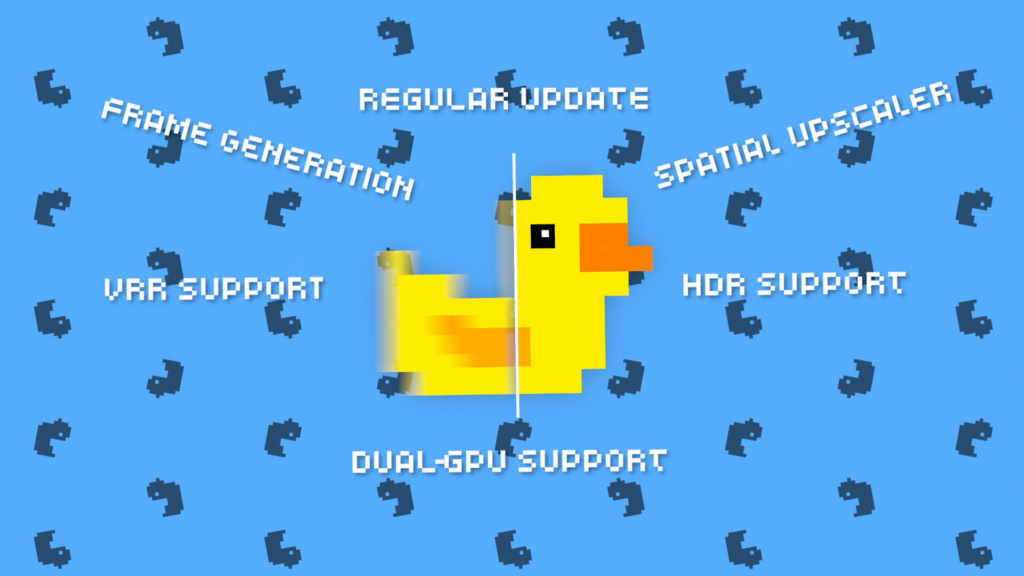
Troubleshooting Common Issues
Even with the best software, you might encounter technical hiccups. Here are the most frequent problems and their tested solutions.
- Black Screen on Activation: This is usually caused by a conflict with other overlays. Specifically, try disabling the Discord overlay or MSI Afterburner. Furthermore, ensure you have selected DXGI as your Capture API in the app settings.
- Noticeable Mouse Lag: Input latency is a byproduct of frame generation. To minimize this, ensure your base frame rate stays above 30 FPS. Additionally, enable “Nvidia Reflex” or “AMD Anti-Lag” in your GPU driver settings.
- Flickering HUD Elements: This is a common artifact of spatial upscaling. Try switching the Scaling Type to NIS or reducing the “Sharpness” slider to find a balance between clarity and stability.
- App Won’t Scale: Check if you are running the game as an Administrator while the scaling app is running as a standard user. Both should have the same permission level for the hook to work.
FAQ: Frequently Asked Questions
Is it safe to use in multiplayer games?
Since this utility works as an external overlay and does not inject code into the game’s executable, it is generally safe for most multiplayer titles. Nevertheless, we recommend caution with games that use kernel-level anti-cheats like Valorant or Ricochet. For single-player games, it is 100% safe.
Does Lossless Scaling support HDR displays?
Yes. Recent updates have added full support for HDR10. Consequently, you can enjoy boosted frame rates without losing the high dynamic range and vibrant colors of your monitor.
Can I use it with emulators like RPCS3 or PCSX2?
Absolutely. In fact, this is one of the most popular use cases. You can take old console titles locked at 30 FPS and force them to run at a silky-smooth 60 FPS using the frame generation feature.
What are the minimum system requirements?
You simply need a PC running Windows 10 or 11 with a GPU that supports DirectX 11 or higher. It is incredibly lightweight and uses very little CPU power.
Is it better than Magpie?
While both are great, Lossless Scaling includes proprietary Frame Generation (LSFG) which Magpie currently lacks. If you want the smoothest motion possible, this is the superior choice.
Final Thoughts: Upgrade Your Experience, Not Your Hardware
In an era where a mid-range graphics card costs as much as a used car, this software offers a refreshing, software-first solution to performance issues. It is powerful enough for enthusiasts but simple enough for beginners. By effectively doubling your frame rate and cleaning up low-resolution images, it breathes new life into older PCs and maximizes the potential of modern handhelds.
Don’t let low FPS hold you back from enjoying the latest releases. Specifically, if you want a more fluid, responsive, and visually impressive gaming experience, this is the one tool you need in your library. It’s safe, tested, and ready for you to try out.