Lossless Scaling for Steam Deck & Handhelds: The 2026 Performance Guide

Handheld gaming PCs have changed the way we play, but they all share a common enemy: power limits. Whether you are using a Steam Deck, ROG Ally X, or Lenovo Legion Go, you often have to choose between a blurry image at 30 FPS or a dead battery in forty minutes. Lossless Scaling has become the essential bridge for these portable devices. By using advanced AI frame generation, it allows handhelds to punch far above their weight class, delivering 60 or 90 FPS in games that usually struggle to hit 40.
In 2026, the software has evolved to support both Windows and Linux (SteamOS) environments, making it a universal requirement for anyone wanting a console-like experience on a mobile chip.
How to Set Up Lossless Scaling on Steam Deck (SteamOS)
Unlike the Windows version, running this tool on the Steam Deck requires a few extra steps because it uses a specialized Vulkan layer called lsfg-vk. For the most seamless experience, we recommend using the Decky Loader plugin.
- Install Decky Loader: If you haven’t already, install the latest version of Decky Loader in Desktop Mode.
- Add the Lossless Plugin: Search for the Lossless Scaling Plugin in the Decky store or download the latest ZIP from the community GitHub.
- Configure LSFG-VK: Open the plugin in the Quick Access Menu (the three-dot button) and click Install LSFG-VK. This sets up the necessary libraries.
- Launch Options: In your game’s Steam properties, add the following to the Launch Options:
~/lsfg %command%. This tells the system to run the game through the frame generation layer. - Performance Tab Tweaks: Open the Steam Deck Performance menu and ensure the Frame Limit is set to Off and Allow Tearing is Enabled. This reduces latency when the software starts generating frames.
Best Settings for Windows Handhelds (ROG Ally, Legion Go)
If you are running Windows 11 on your handheld, you can use the standard app. However, because these devices have high-refresh-rate screens (120Hz or 144Hz), your strategy should be different than on a standard PC.
- Resolution: Set your game to 800p (1280×800). Use the LS1 algorithm in the utility to upscale it to 1080p or 1600p.
- Frame Generation Mode: Use LSFG X3. Since the Legion Go has a 144Hz screen, hitting a base 48 FPS and tripling it gets you a perfect 144 FPS visual experience.
- Capture API: Always use DXGI. It is specifically optimized for Windows handhelds and offers the lowest input lag.
- V-Sync: Set V-Sync to Default or FIFO within the scaling app and disable it in the game menu.
Battery Life Secrets: Using AI to Save Juice
One of the most overlooked benefits of using Lossless Scaling for handheld consoles is battery preservation. Normally, pushing a game to native 60 FPS requires the GPU to run at max TDP (often 25W or 30W), which drains the battery rapidly.
To save power, follow this formula:
- Lower the game’s TDP limit to 10W or 12W in your handheld’s quick settings.
- Lock the game to a stable 30 FPS native.
- Enable LSFG X2.
Consequently, the system only works hard enough to render 30 frames, while the software “creates” the rest. This can often extend your playtime by 30-50% while maintaining the visual smoothness of a high-performance rig.
Troubleshooting Handheld Issues
- Screen Tearing: This is common on the Steam Deck. Ensure Allow Tearing is toggled on in the SteamOS quick settings. The frame generation layer needs control over the buffer to display frames correctly.
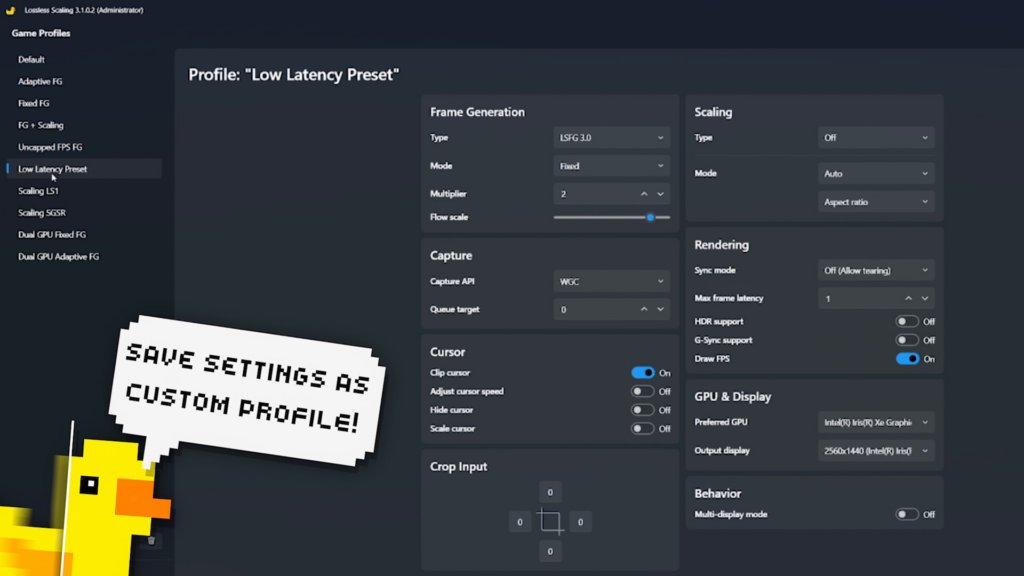
- Ghosting in Fast Scenes: If you see “shadows” behind your character, try reducing the Flow Scale slider in the app settings to around 0.7. This reduces the sensitivity of the motion analysis.
- Input Lag in Shooters: Frame generation always adds a few milliseconds of delay. To combat this, never use the tool if your base frame rate is below 30. For competitive games, upscaling is recommended, but frame generation should be used with caution.
FAQ: Portable Gaming Edition
Does it work with the Epic Games or Game Pass on handhelds?
Yes. On Windows handhelds, it works with any launcher. On Steam Deck, you may need to add the non-Steam game to your library first and then apply the launch command.
Will this overheat my device?
No. In fact, it often helps reduce heat. By rendering at a lower resolution and frame rate natively, your APU generates less thermal energy. The AI upscaling is handled very efficiently.
Is LSFG better than the built-in FSR in SteamOS?
The built-in FSR only handles upscaling (sharpness). It does not generate frames. To get more fluidity, you must use the LSFG-VK plugin alongside the built-in sharpening.
Conclusion: A New Life for Your Handheld
The era of choosing between performance and portability is over. With Lossless Scaling, your handheld becomes a 60 FPS powerhouse that stays cool and lasts longer. It is the most impactful software upgrade you can give to your Steam Deck or ROG Ally this year.